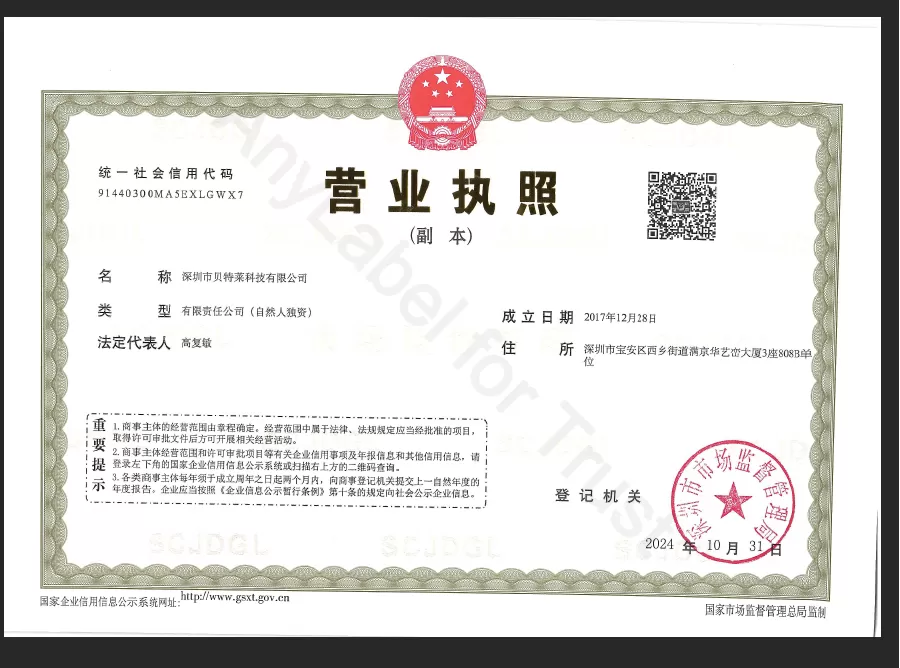
Shenzhen Bei Telai Technology Company Limited

How to Use Cricut Design Space?

Table of Content [Hide]
    How to Use Cricut Design Space?

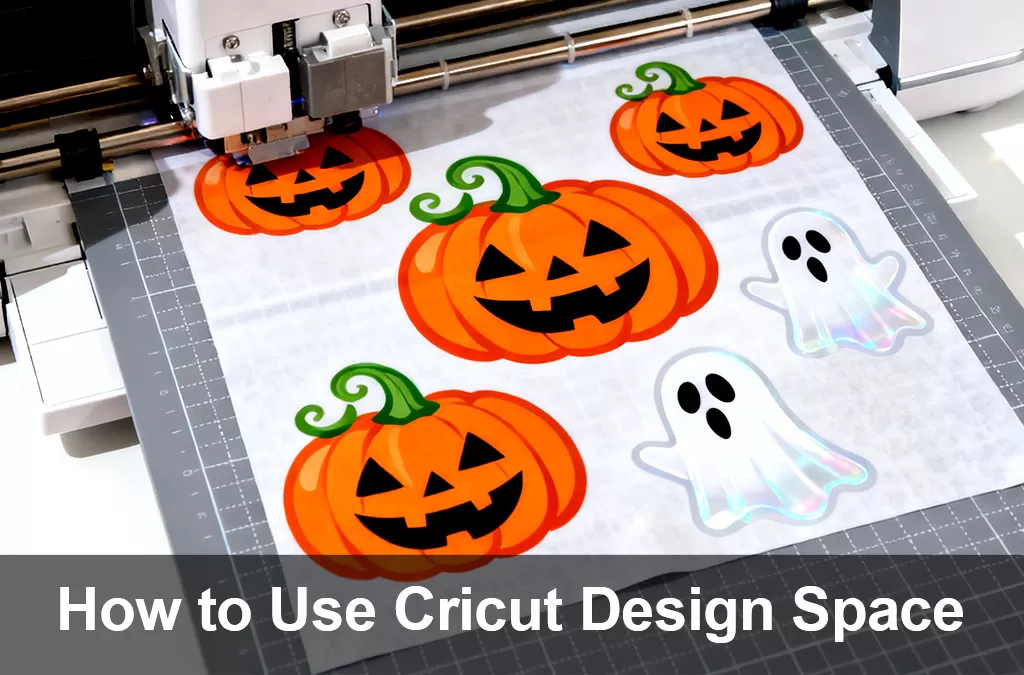
    When you think about making a project with a Cricut machine, there's a good chance you immediately think about loading mats, pressing buttons, and cutting beautiful materials. But before any of the physical magic actually happens on your machine, you must first design your project in Cricut's software: Cricut Design Space. Using Cricut Design Space is not hard; but it's also where many beginners get overwhelmed, frustrated, and ultimately walk away. So today, I'm breaking down all the Cricut Design Space basics. I'm covering what it is, why you have to use it, and how to navigate the software in order to make your first few projects. There's a lot to learn; but I promise it will all come fast, and you'll be feeling confident in no time. Let's get to it!


    What Is Cricut Design Space?

    • Set up your new Cricut machine

    • Register your new Cricut machine

    • Update your Cricut machine with newly-released updates

    • Design your projects, and

    • Run your Cricut machine in order to make your projects

    Starting a New Project in Cricut Design Space

    When you purchase a Cricut machine, you will connect it to your Cricut Design Space account as part of the setup process. In the upper righthand corner (of any screen) in Cricut Design Space, you should see your machine designated. If you own more than one Cricut machine, make sure you select which machine you will be using for your current project, as various tools within Cricut Design Space will vary based on machine.

    Adding Images to Your Project

    The foundation of almost all Cricut projects is Images—the designs you want your machine to cut, draw, or print. Whether you’re creating decals, stickers, or home printer labels, these images define the final output. Although you can upload your own images (SVG, PNG, and JPG files), the easiest and quickest place to start is right within the Cricut Design Space Image Library.

    Adding Text to Your Project

    Apart from images, the other main element you will likely be adding to your Cricut projects is custom text. Just like with images, there are now lots of options for adjusting your text so that it looks just right!

    Preparing Your Design For Cutting

    Once you have your project designed exactly as you want it, you might be quick to send it your Cricut machine. But before you do, there are some important things you might need to do first!

    Navigating the ''Prepare Screen'' In Cricut Design Space

    After clicking the green "Make It" button, you will land on the first of two very important screens (e.g., the Prepare Screen and the Make Screen). There are so many details on these screens that ultimately determine the overall success of your Cricut project, so let me walk you through all the important specifications you need to make.

    Navigating the ''Make Screen'' In Cricut Design Space

    On the (final) Make Screen, you will make material selections (e.g., vinyl versus paper versus iron-on, etc) and then get very specific prompts for cutting out your project.

    Assembling Your Cricut Project

    With all of your layers fully cut out, your work in Cricut Design Space is done! If you created a Cricut Access project, you can exit out in order to refer back to the original project for detailed assembly instructions.

    References
    NEXT: No information
    Client Services
    Client Services
    Assist you at any time
    Wire transfer
    Wire transfer
    Various payment options
    Customized services
    Customized services
    Any size and quantity we can do
    Fast shipping
    Fast shipping
    Delivery time 3-7days
    For Dealer Customers
    For Dealer Customers

    If you have a larger quantity order, please contact us to calculate a more favorable price for you.

    If you have any requests, we will do our best to provide


    Tell Us What You Need. We Will Make It for You!


    Sales Representative: info@anylabelvip.com
    Get a Quote
    Sign up to get more information and discounts on labels
    Get updated labels and offers faster
    We use cookies to offer you a better browsing experience, analyze site traffic and personalize content. Part of the tracking is necessary to ensure SEO effectiveness,
    By using this site, you agree to our use of cookies. Visit our cookie policy to learn more.
    Reject Accept